How to mute or lower music during calls on your Mac (Zoom, Teams, Discord)
You know the moment. A Zoom link pops up, you click join, and suddenly your carefully curated playlist is competing with a coworker’s “can everyone hear me?” You fumble for the pause button while the whole room waits. It happens on every platform, Zoom, Teams, Discord, Google Meet, and it never stops being awkward.
The good news is that fixing it takes a few seconds once you know your options. The better news is you don’t always have to kill the music entirely.
The manual way: pause before you join
The simplest habit is to pause your audio before you click the call link, not after. If you use Spotify or Apple Music, the media keys on your keyboard (or the Touch Bar / F8 play-pause key) will stop playback no matter which app is focused. Tap it on your way into the meeting and you’re clean.
Browser audio is trickier. A YouTube video, a Twitch stream, or an autoplaying article doesn’t respond to the media keys reliably. macOS does show a little speaker icon on any tab that’s making noise, so you can hunt through your tabs and click to mute the offender. But when you’re already three seconds late to a call, hunting through fourteen tabs is exactly the scramble you’re trying to avoid.
And none of this helps with the surprise noises: a game still running, a video autoplaying in the background, or a notification sound that lands mid-sentence.
The problem with the built-in controls
macOS gives you one master volume. That’s fine for turning everything down, but it’s a blunt instrument. Turn the system volume to zero and you’ve also muted the call you’re trying to hear. There’s no built-in way to quiet the music while keeping the meeting, because the Mac has never shipped a per-app mixer. (If you’ve ever wondered why, we wrote about that here.)
So the built-in choice is really: pause the music completely, or mute your whole Mac. Neither is what you actually want in the middle of a call.
The one-click way: mute the music, not the meeting
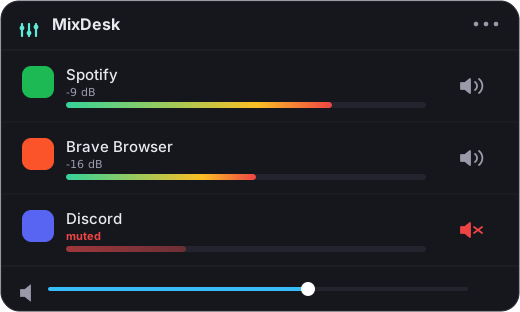
This is the gap a menu-bar mixer fills. MixDesk lives in your menu bar and shows a live level meter for every app that’s currently making sound, so the instant a call starts you can see exactly what’s playing, Spotify, Chrome, a game, whatever, and silence it with a single click.
The mute is a real per-app mute. It diverts that one app’s audio away from your speakers using Apple’s Core Audio process-tap API, so muting Chrome doesn’t touch your call audio at all. You can hush the browser tab that’s blasting a video without ever finding the tab. Click again to bring it back when the call ends.
Here’s the part that’s easy to miss: you don’t always want silence. If you like a little background music while you work, killing it stone dead the moment someone dials in is overkill. For Spotify and Apple Music, MixDesk gives you an actual volume slider, so you can pull the music down to a low murmur instead of stopping it. Drop it to 15 percent, take the call, slide it back up after. No re-cueing your playlist, no losing your place in a podcast.
So your on-call routine becomes simple: glance at the menu bar and mute the browser or game with a click, then ease the music down with the slider. A couple of seconds, no scrambling.
What about doing it automatically?
It’s worth being honest here: MixDesk doesn’t auto-detect a call and duck your music for you. It’s a fast manual control, not an automation. Some people prefer that, you stay in charge of exactly what gets quieted and when, but if you specifically want music to auto-pause the instant a mic goes live, that’s a different kind of tool, and MixDesk isn’t pretending to be it.
What it does give you is the fastest possible manual path: everything that’s making noise, visible in one place, one click away from silence.
The alternatives
If you want the heaviest possible toolkit, SoundSource from Rogue Amoeba (around $47) does full variable volume for every app plus routing, and it’s excellent, just pricier and more than most people need for quieting the music during calls. Background Music is a free, open-source option that can do per-app volume, though it’s been known to get finicky and isn’t actively maintained. MixDesk sits in the simple, cheap, native corner: it shows what’s playing and mutes anything instantly, and you can ride the volume on your music. It runs entirely on-device, so your audio never leaves your Mac.
If your needs go beyond calls, it’s also just a handy way to mute a specific app whenever it’s being loud.
The short version
To quiet things during a call, pause your music with the media keys and mute noisy tabs before you join. When that’s too slow, or you’d rather turn the music down than off, a menu-bar mixer like MixDesk lets you see every app that’s making sound and mute or lower it with one click, without touching your call audio. It needs macOS 14.2 or later on Apple silicon. Two-week free trial, then $9 once.
MixDesk does this for you
A menu-bar mixer with live meters and per-app mute. Free for 14 days.
Try MixDesk free